Track
Track
 Login
Login


Blank Screen / No Video / Blue Screen / TV displays "No Signal" message - Ultra/Ulti Box
STEP 1
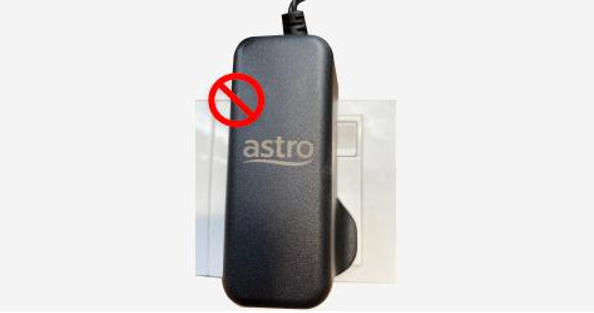
Switch off the power of your box and make sure that the adapter’s power light is off.
STEP 2
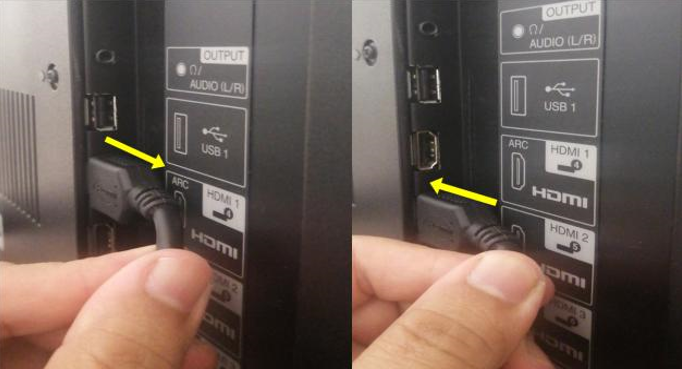
Unplug the HDMI cable from your TV and plug it back in securely to other available HDMI port.
STEP 3
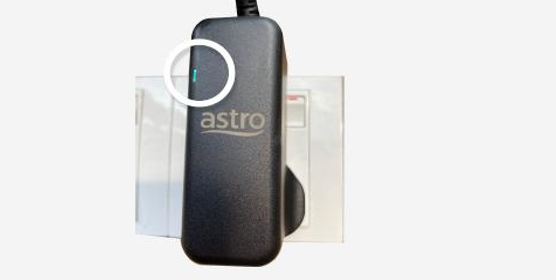
Switch on the power for your box and make sure that the adapter’s power light is on.
Please wait for 5 minutes.
STEP 4
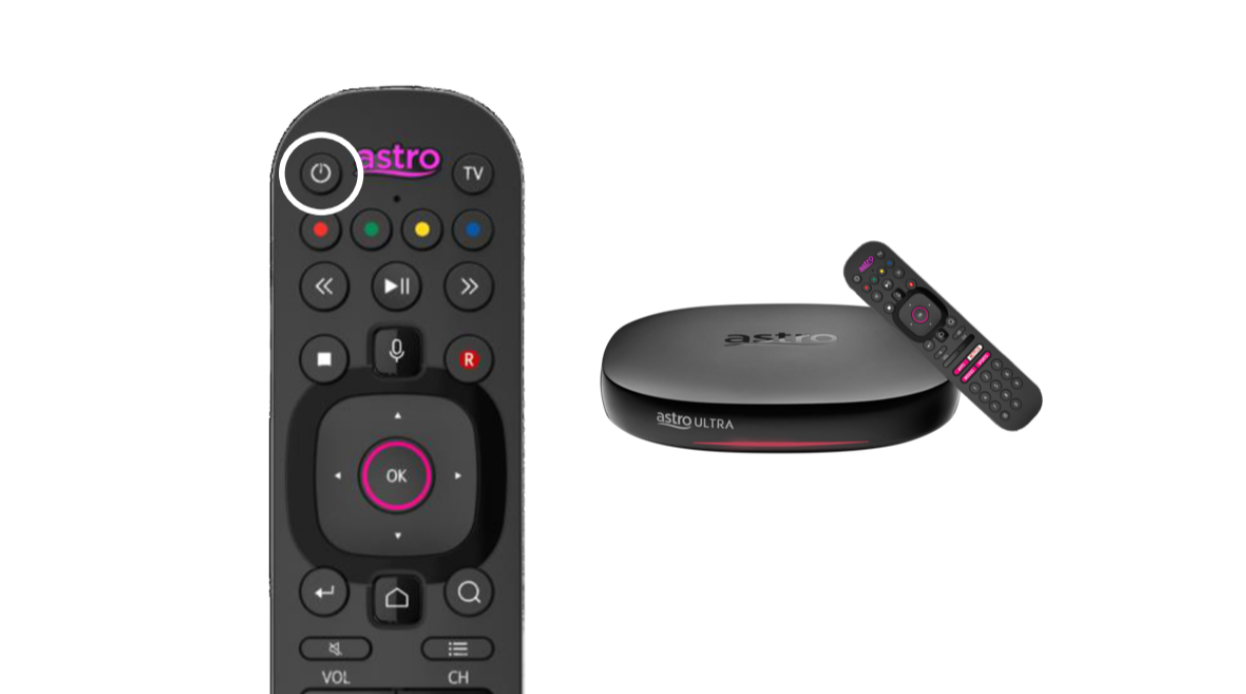
Turn on your box. Do select the correct TV input.
------
If you're seeing a persistent blank screen after changing the display resolution on your Ultra/Ulti Box (for example, to 2160p), your TV may not support the selected resolution.
STEP 1
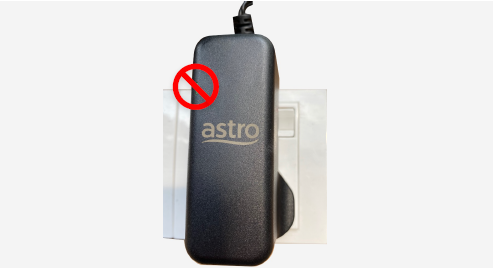
Switch off the power for your box and make sure that the adapter's power light is off.
STEP 2
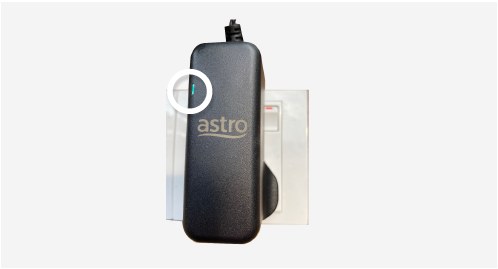
Switch on the power for your box and make sure that the adapter's power light is on.
STEP 3
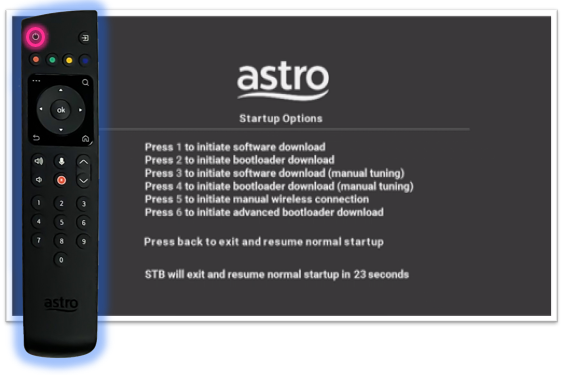
Press the standby button repeatedly after switch on the power.
The Startup Options screen will appear on your TV.
STEP 4
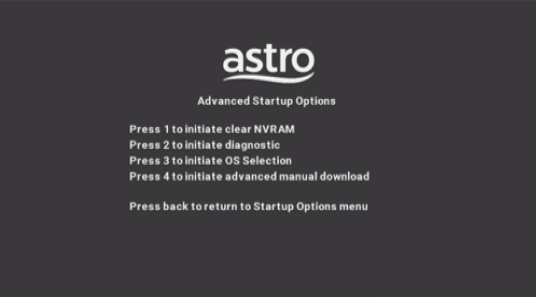
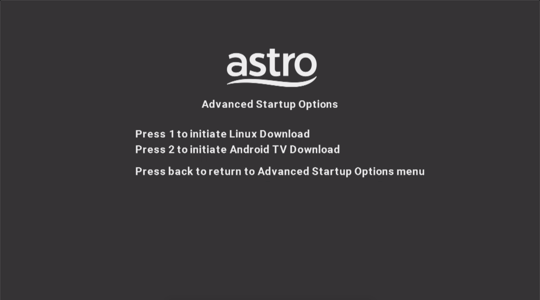
Press "987" to access the Advanced Startup Options menu.
Then, press "1" to initiate a reset setting.
STEP 5
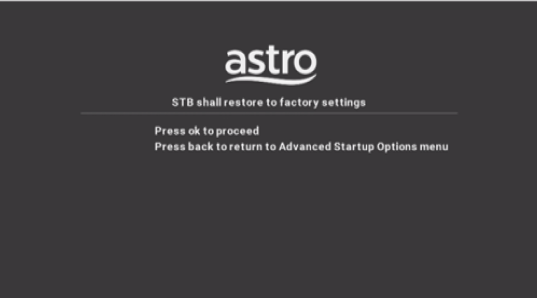
Press "OK" to confirm restore to factory setting.
STEP 6
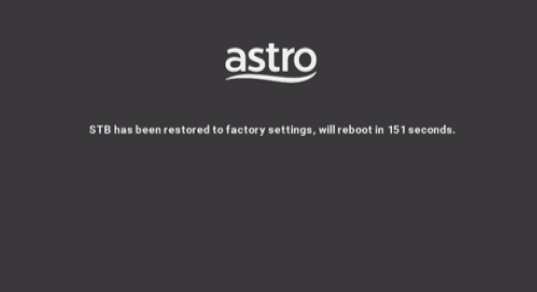
After the factory setting is restored, TV will turn blank.
Please wait until the box completes initiate setup.
STEP 7
Press "1" to initiate Linux download on the software.
STEP 8
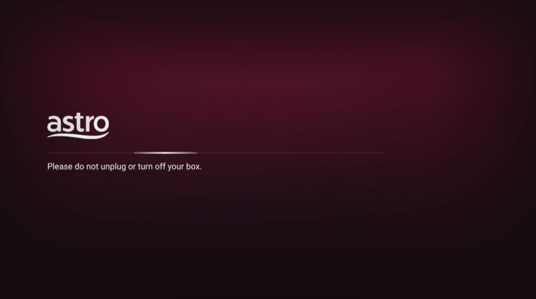
Once completed, the following screen will appear on your TV.
Refer to Installation Setup guide here to complete the setup.
Similar Articles